




Ready for Relief?
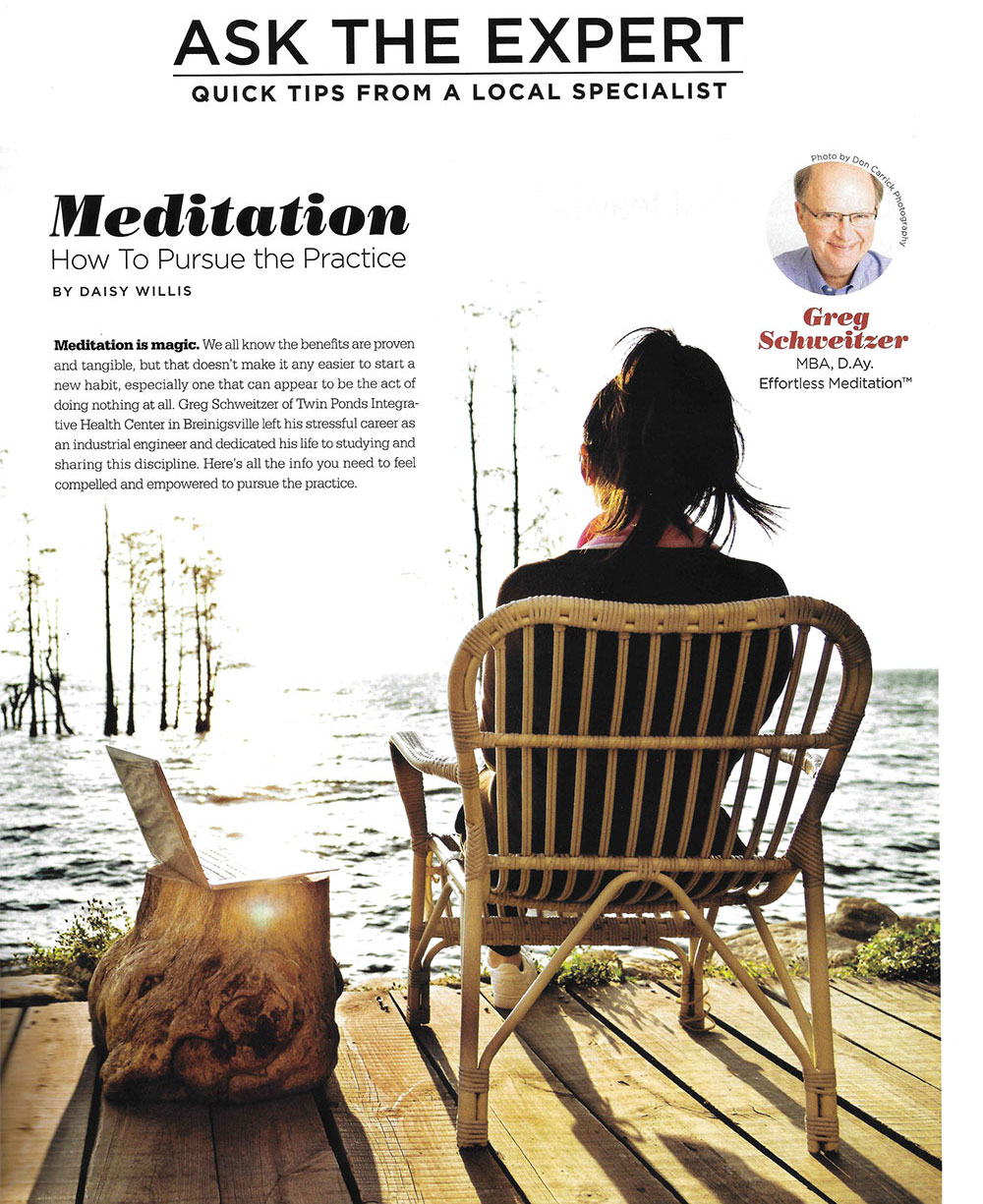
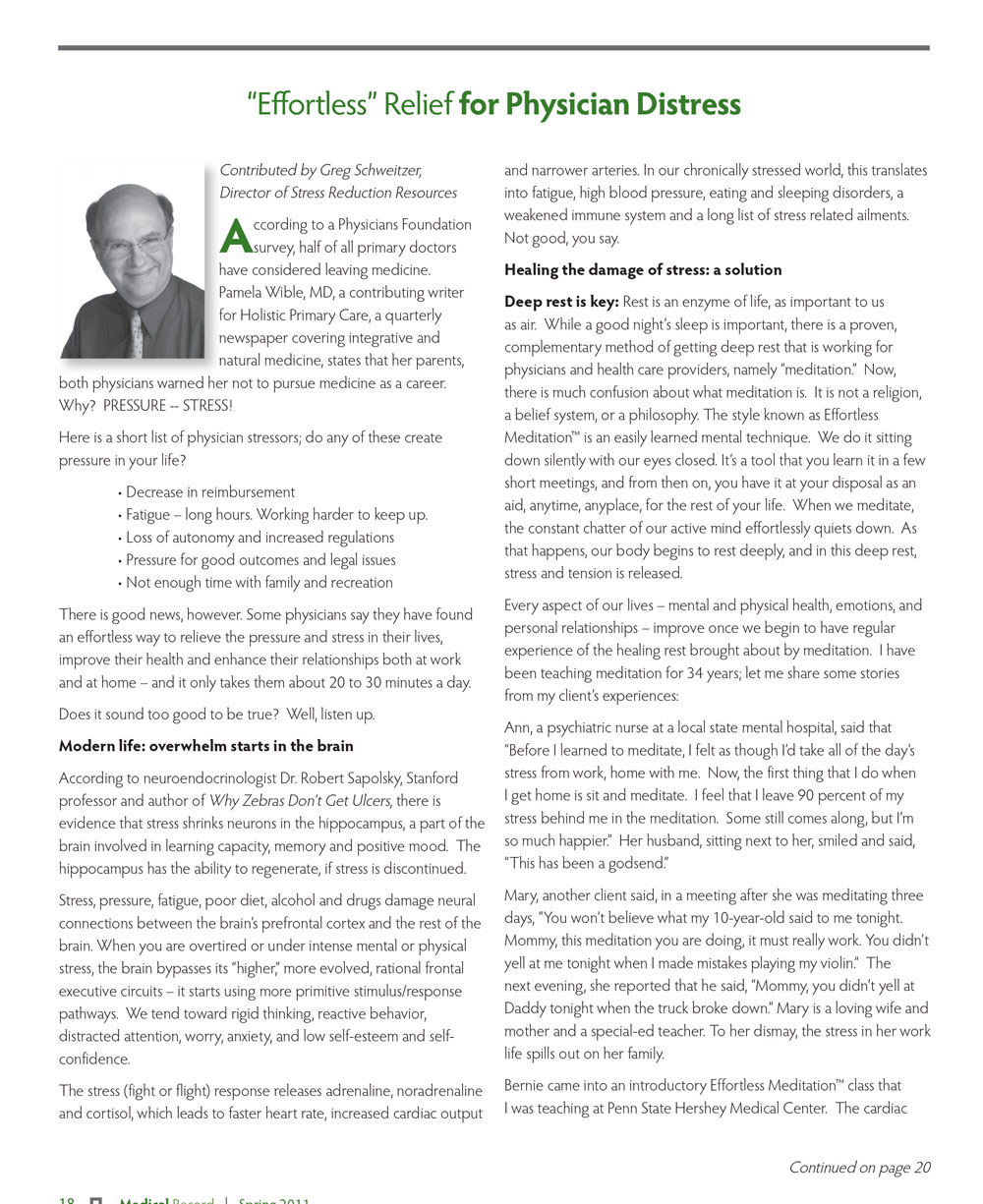
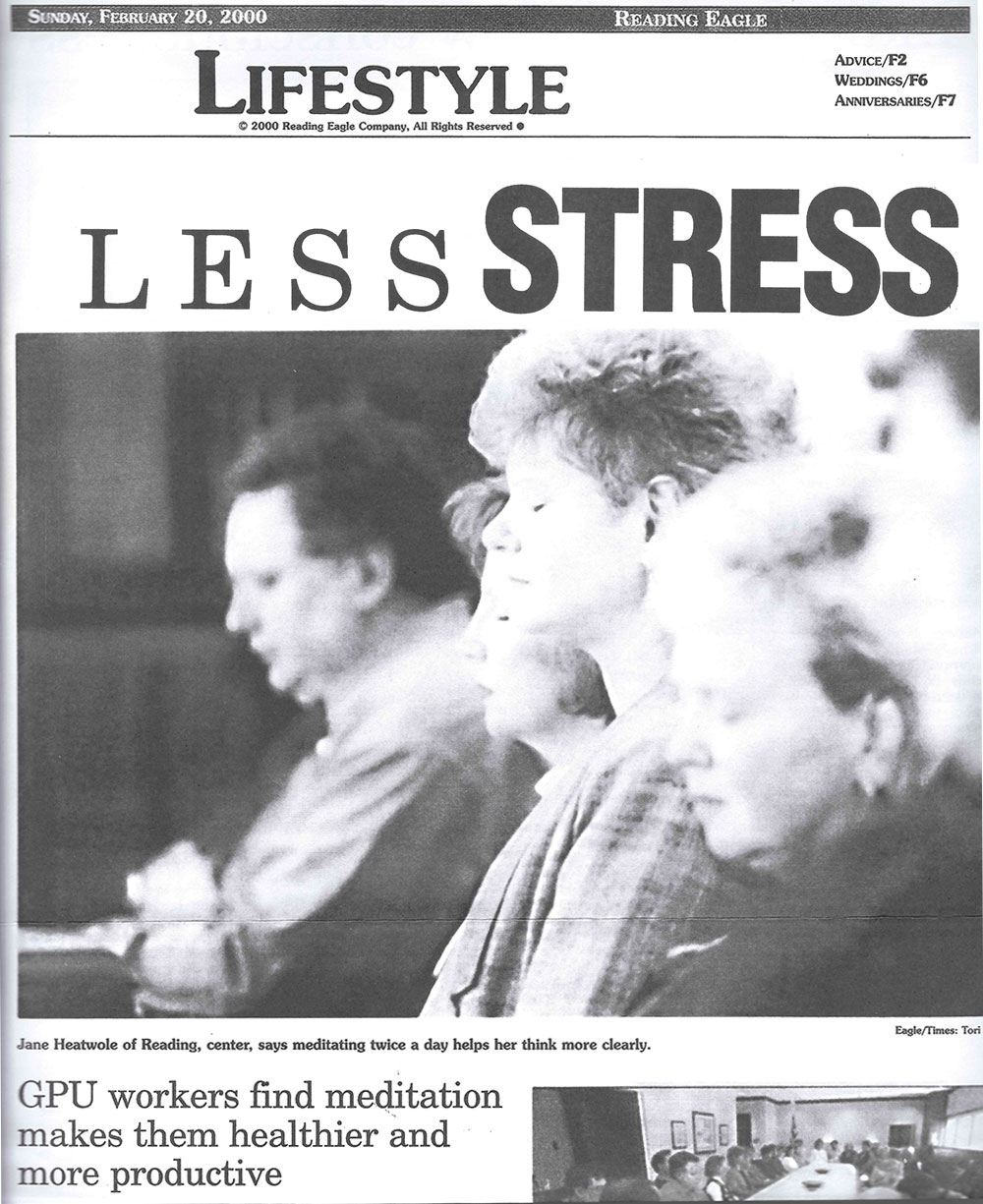
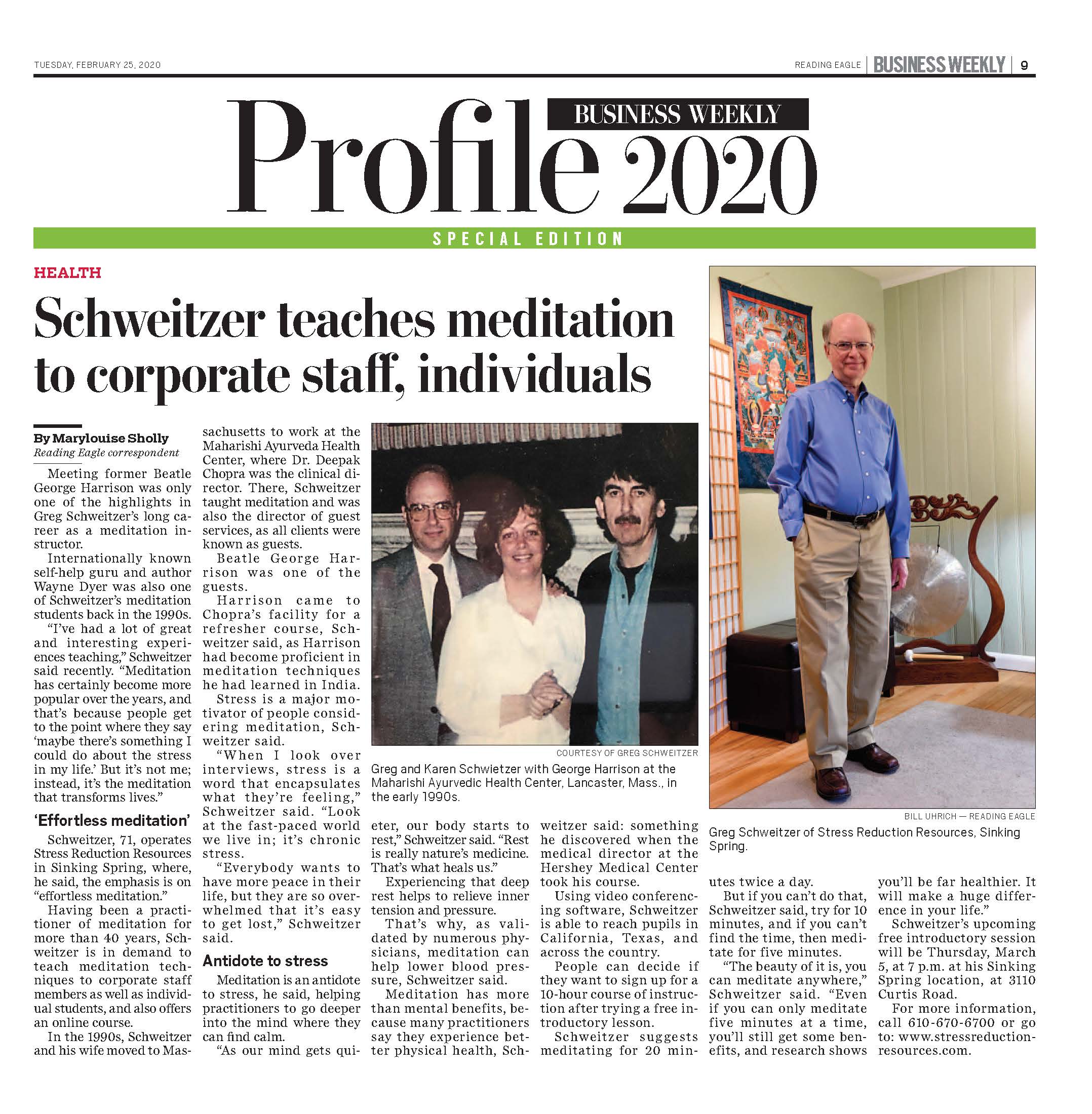
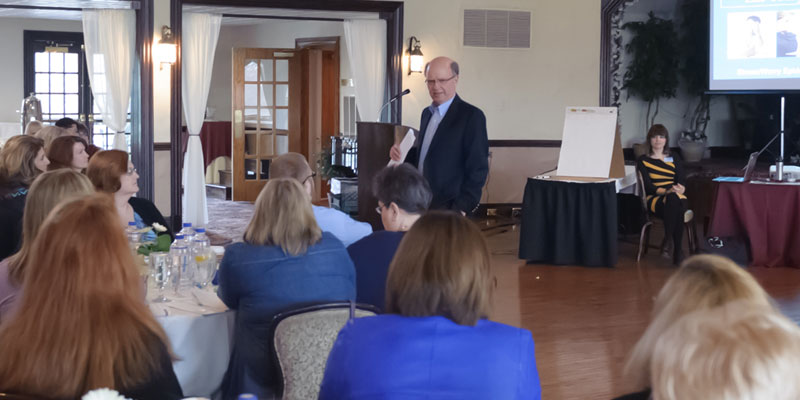
During his 40 years as an instructor of meditation, Greg Schweitzer has introduced thousands to the benefits of the practice. His passion for teaching is driven by the changes that he’s seen in his life and in the lives of those who attend his classes. His client list includes people from all backgrounds: students, employees, executives, retirees, organizations of all sizes, physician-referred patients, and celebrities such as George Harrison of the Beatles and best-selling author and speaker, Dr. Wayne W. Dyer.

How We Can Help
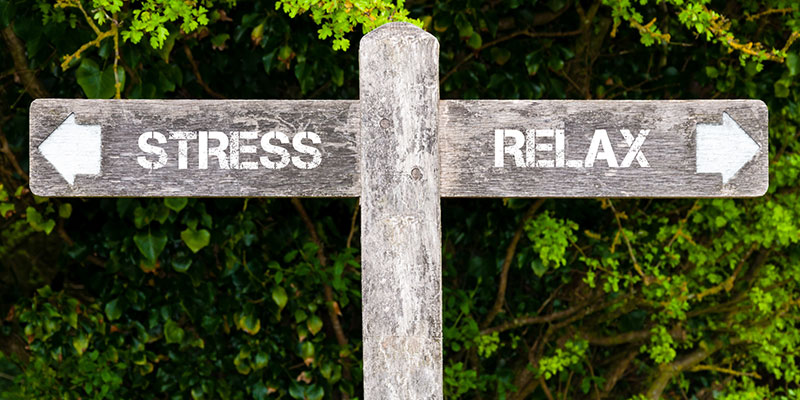
EM is an antidote for stress.
EM brings peace to the mind.
Stress excites the mind; EM calms the mind.

EM provides rest that’s deeper than sleep.
Brain fog melts away with EM.
EM soothes your mind, restoring balance.
Client Experiences
“Every time I see a patient stressed to the max and hormonally, nutritionally challenged, after I do my magic, I ALWAYS advise that they take Greg’s meditation course, and practice. It exponentially impacts on their healing.”
“Stress Reduction Resources worked with my IT team on “stress reduction training utilizing Effortless Meditation”, it was a complete success. It was well worth the investment, both in time and money.”
“What a wonderful gift I have given myself in attending your stress reduction workshop. Truly your session has been a life altering experience for me.”